Download File and Object Analyzer
See, understand, and act on your unstructured data across file and object storage from one continuously updated metadata index.
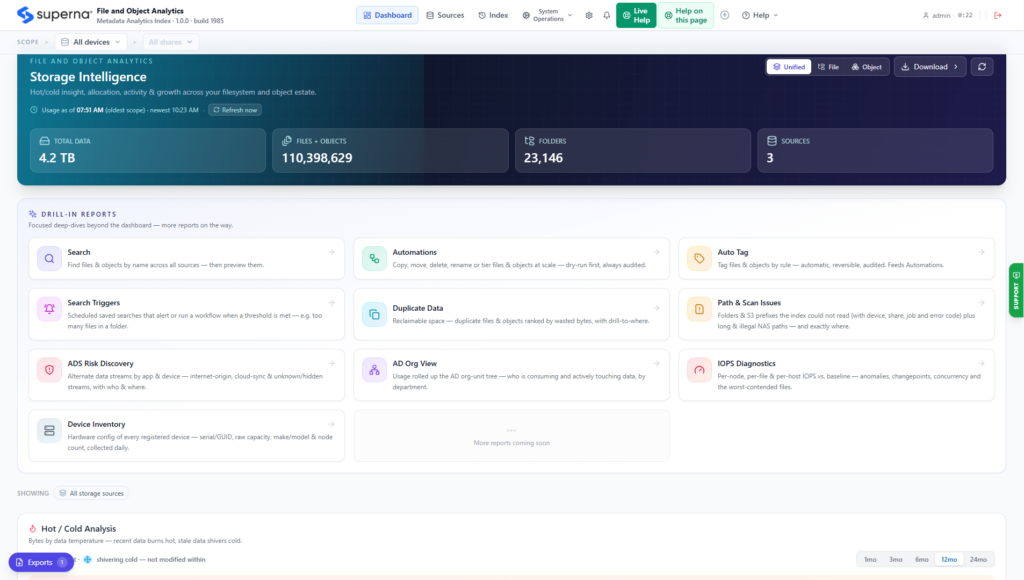
File and Object Analyzer ships as a single VMware OVF virtual appliance that you deploy and run in your own environment. No professional services required.
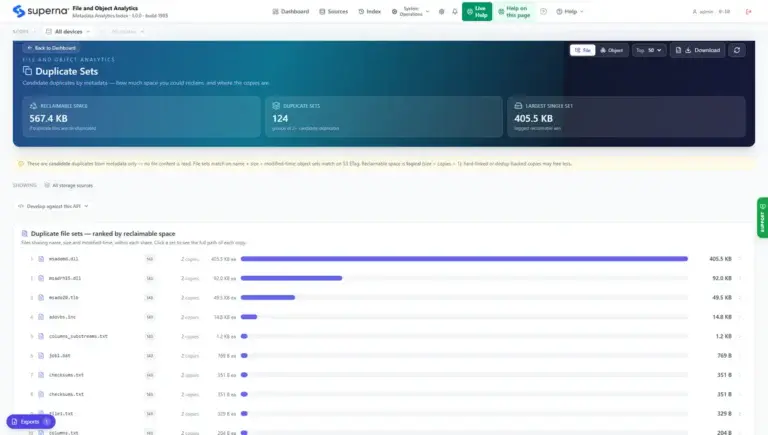
It indexes Dell PowerScale, NetApp ONTAP, Dell ObjectScale, and Windows SMB compatible shares (Windows file servers, Samba, and third-party NAS) into one view of capacity, ownership, age, duplication, growth, and path risk. On PowerScale, NetApp ONTAP, and ObjectScale and ECS, change feeds keep the index current between scans.
Scanning and indexing require an active File and Object Analyzer subscription. After you deploy, request a one-year subscription license from inside the product. Superna approves licenses within 48 hours, often sooner.
Use of File and Object Analyzer is governed by the End User License Agreement.
REQUIREMENTS
Before you install
The installer checks the host before setup completes, so confirm these first:
| REQUIREMENT | MINIMUM |
|---|---|
| Platform | VMware (OVF virtual appliance) |
| Memory | 100 GiB RAM |
| CPU | 10 vCPU |
| Disk | About 980 GiB total: 60 GiB system, 10 GiB application data, 10 GiB database, 900 GiB analytics store |
| Analytics store performance | NVMe recommended; at least 150 MB/s sustained write |
| Backing storage latency | Under 5 ms read and write |
| Browser | Google Chrome |
| Internet Connection | Outbound only HTTPS to https://supportbot.superna.io |
| Network services | DNS and NTP reachable from the appliance |
Disk sizes are in GiB. A “900 GB” disk is about 838 GiB and will fail the installer check.
You will also need read-only service accounts for each storage platform, including the backup privilege for the metadata walk. Read the deployment guide.
Supported sources
- Dell PowerScale (SMB)
- NetApp ONTAP (SMB)
- Dell ObjectScale (S3)
- Windows SMB compatible shares: Windows file servers, Samba, third-party NAS
From download to your first index
License requests can take up to 48 hours. Request yours as soon as the appliance is deployed.
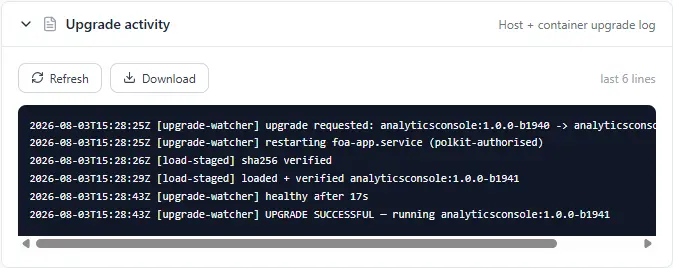
You don’t need to come back to this page for new releases. The appliance notifies you when an upgrade is available, then downloads and verifies it itself. Applying an upgrade takes about one to two minutes of downtime, with automatic rollback if the new version fails its health check.
Frequently asked questions
There’s no time-limited trial of the base product. To evaluate, request a one-year subscription license from inside the product after you deploy. Optional paid features (Role Based Login, Application Discovery and Categorization, AD Org View of data usage, Geo Federated Mesh for global view of data islands, IOPS Diagnostics and Bulk results export) can each be tried with a time-bound trial key.
Once your license is approved, adding a cluster to its first index typically takes under 20 minutes. License approval takes up to 48 hours, often sooner.
Indexing is metadata-only: names, sizes, owners, timestamps, and paths. Indexing never reads file content. If an administrator opens a file in the built-in File Viewer, that one file is retrieved for preview.
Dell PowerScale, NetApp ONTAP, Dell ObjectScale (S3), and Windows SMB compatible shares, including Windows file servers, Samba, and third-party SMB NAS. One caveat with SMB is that incremental indexing is not supported and some features that leverage audit data will not be available. Windows SMB shares must be on domain-joined servers.
NFS data can be indexed through an SMB share that covers the same path. Restrict that share to the File and Object Analyzer service account. Owners resolve names through Powerscale authentication providers.
How much load does indexing put on our storage?
One appliance is designed to scale to 10 billion files and objects. For larger environments, we can help size beyond 10B with a single VM.
No. File and Object Analyzer is a standalone product with no dependency on any other Superna product. If you run Superna Disaster Recovery Edition on PowerScale, File and Object Analyzer integrates with Disaster Recovery Edition through a DR Dashboard that ranks failover by business impact and integrates with Superna Airgap along with built-in Cyber Vault explorer tool that is free to use.
File and Object Analyzer is an administrator tool; search and dashboards don’t filter results by share or file permissions. To give trusted team leads or department owners a view of only their own shares, add Role Based Login (paid).
The web console is supported on Google Chrome.